Recurring Event Setup: Google’s 730 Limit for Group Rides
· 14 min read

Create the event, pick a repeat pattern, set an end condition, then save: that’s the whole job. Most calendar tools let you edit “this event,” “all following events,” or the entire series, so exceptions never require rebuilding anything. Google caps repeating events at 730 occurrences, and if you’re coordinating a cycling crew, Coffeeride supports recurring ride posting and club scheduling so your weekly group ride lives in one place.
TL;DR:
- Google Calendar caps repeating events at 730 occurrences, so set an end date and renew a weekly series before it reaches that limit.
- Edit one date alone, apply changes only to future dates to preserve past events, and update the whole series only for a retroactive change.
- Apple Calendar distinguishes fixed monthly dates from weekday positions; choose a weekday position for a ride scheduled on the third Saturday each month.
- For limited capacity, collect RSVPs per session, not once for the series; Zoom tracks attendance individually, so one absence affects only that date.
Table of Contents
- Before You Build the Series: A Quick Decision Checklist
- Setting Up Recurring Events in Google Calendar
- Scheduling Recurring Meetings in Outlook
- Customizing Repeat Patterns in Apple Calendar
- Running Recurring Sessions on Zoom and Other Meeting Platforms
- Editing One Date, Future Dates, or the Whole Series
- Handling Time Zones and Daylight Saving for Recurring Events
- Avoiding Import, Export, and Long Series Problems
- Best Practices Organizers Should Follow for Recurring Rides
- Managing Capacity and Waitlists for Recurring Group Rides
- Connecting Recurring Event Reminders to Mobile Push Alerts
- Linking Recurring Rides to Club Memberships and Groups
- Our Take on Scheduling Recurring Rides and Clubs
- Post Your Recurring Ride on Coffeeride Club
- FAQ
- Sources
Before You Build the Series: A Quick Decision Checklist
A few decisions up front save you from rebuilding a series later. Lock these in before you hit “save” on the first occurrence.
- Pick the frequency, and if it’s monthly, decide whether you mean a fixed date (the 15th) or a weekday position (the third Thursday).
- Set a real end condition: an end date, a number of occurrences, or at minimum, know your platform’s limit.
- Confirm the event’s time zone, especially if riders or attendees join from another region.
- Decide if RSVP applies to the whole series or each occurrence separately, and set any capacity limits now.
- Prepare anything that needs to persist across every instance: the meeting link, a room booking, or a default reminder time.
Pro Tip: Write your end condition into the event title or notes (“Weekly Ride, through October”) so nobody has to guess when the series wraps up.
Setting Up Recurring Events in Google Calendar
Google Calendar handles recurrence the same way on desktop and mobile, with small menu differences.
- On desktop, create the event, open “Does not repeat,” choose a frequency, set an end condition, and save.
- On mobile, tap Create Event, open More Options, select “Does not repeat,” choose a frequency, and save.
- To change one date, open that occurrence and edit it alone, which creates an exception without touching the rest of the series.
- To change everything going forward, choose “This and following events” when the edit prompt appears.
- To cancel one date entirely, open that occurrence and delete it rather than the whole series.
Google states repeating events are limited to 730 occurrences, which matters if you’re scheduling an open-ended weekly ride years into the future. Developers working with the Calendar API will recognize events.instances and recurringEventId, the fields that connect each occurrence back to its parent RRULE.
Scheduling Recurring Meetings in Outlook
Outlook on the web and the classic desktop app share the same underlying logic, though the buttons sit in different spots.
- In Outlook on the web, start a New Event, select Repeat, set the start and end dates and the interval, then Save and Send.
- In classic desktop Outlook, use the Recurrence button on the appointment or meeting ribbon to set the same options.
- When you later edit the series, choose “edit this occurrence,” “edit series,” or “edit this and all following,” since each scope affects attendees differently.
- Use the Scheduling Assistant to check attendee availability before sending a series invite or before shifting a single instance.
- Leave the default reminder as is or adjust it, knowing Outlook’s web workflow defaults to a 15-minute reminder.
One attendee quirk worth knowing: removing someone from a single occurrence doesn’t always remove them from the rest of the series, so recheck the guest list at the series level whenever membership changes.
Customizing Repeat Patterns in Apple Calendar
Apple Calendar on Mac and iOS gives you presets plus a Custom option for anything more specific.
- Open the event, tap Repeat, and choose a preset (daily, weekly, monthly, yearly) or select Custom for finer control.
- Set End Repeat to a date, a count, or never, depending on how long the series should run.
- Under Custom, choose between a date-based rule and a weekday-position rule, since Apple documents both as separate monthly patterns.
- To stop or delete a repeating event, open any occurrence and choose whether the change applies going forward or to the whole series.
Weekday-position rules hold up better across months of different lengths. If your group ride always falls on a Saturday, build the rule around the weekday, not the date.
Running Recurring Sessions on Zoom and Other Meeting Platforms
Zoom’s Recurring Sessions option covers most repeat scheduling needs for virtual meetups, training rides, or club calls.
- Select Recurring Sessions, then set the start time, duration, time zone, and frequency.
- Choose weekly sessions by specific weekday or monthly sessions by date or weekday position.
- End the series by date or by a fixed number of sessions rather than leaving it open-ended.
- Decide whether to reuse one persistent meeting link or generate a fresh one per session, based on how tightly you want to control access.
Zoom records attendance at the individual session level, not just for the series as a whole, so a no-show at an individual session won’t show up as a no-show for the whole series. For classes, paid sessions, or anything with limited capacity, require registration per session rather than once for the entire run.
Pro Tip: If attendance varies week to week, per-session registration gives you a far more accurate headcount than a single series-wide RSVP.
Editing One Date, Future Dates, or the Whole Series
Every major platform asks the same underlying question when you touch a recurring event: does this change apply to one instance, everything from here forward, or the entire series retroactively? Microsoft’s support guidance frames this as three distinct choices, and treating them separately protects your history.
- Edit a single occurrence when only one date needs a change, like a moved start time for one occurrence.
- Edit “this and all following” when the change should apply from now on but the past stays untouched, which effectively splits the series using recurrence logic similar to adding an UNTIL or COUNT boundary to the original rule.
- Edit the entire series only when the change is retroactive and applies to every date, past and future.
Before applying a change across multiple instances, preview the attendee list and send a notification. A quiet time change buried in a calendar update is easy to miss, especially for anyone who doesn’t check notifications daily.
Handling Time Zones and Daylight Saving for Recurring Events
Time zone mistakes are one of the most common recurring-event headaches, especially for groups that span regions.
- Set the event’s time zone explicitly rather than relying on your device’s default.
- Confirm attendee zones for any cross-region series, since an early-morning start doesn’t mean the same thing everywhere.
- Expect daylight saving transitions to shift local start times for some attendees, and label the event with its time zone so nobody misreads the invite.
- Anchor a global series to UTC if attendees span multiple regions, or anchor it to local time if everyone rides from the same area.
- Send a reminder just before a daylight saving transition and double check the next two or three upcoming instances.
Avoiding Import, Export, and Long Series Problems
Long-running series run into two kinds of trouble: platform limits and messy imports. Google enforces a 730 occurrence cap on repeating events, so an indefinite weekly series eventually needs renewal.
- Set an explicit end date rather than letting a series run toward its platform limit unnoticed.
- Know that some calendar apps export repeating events as a batch of single events, which means an imported “series” may actually be dozens of disconnected entries.
- When migrating or scripting events through an API, handle
events.instancesandrecurringEventIdcarefully so the series structure survives the move. - Test any export and import on a small subset of dates before moving an entire season’s schedule.
Best Practices Organizers Should Follow for Recurring Rides
A recurring event is only as useful as the habits built around it. These small practices keep a long-running series easy to manage.
- Name the series clearly and consistently, including the recurrence pattern in the title, like “Tuesday Night Hill Ride, weekly.”
- State upfront whether RSVP applies per ride or covers the whole series, so riders know what they’re committing to.
- Put logistics (start point, pace, cancellation policy) directly in the event notes rather than in a separate message.
- Review the series every few weeks: confirm the end date still makes sense and the attendee list reflects who’s actually showing up.
- Borrow from RSVP fields that improve ride safety and privacy and a pre-ride etiquette checklist to round out your event notes.
Managing Capacity and Waitlists for Recurring Group Rides
Capacity limits matter more for recurring rides than one-off events because the same cap repeats every week, and a popular ride can quietly outgrow its format. Decide on a maximum headcount based on the route, the pace group size you can safely lead, and whether you’re riding on open roads or shared trails.
Once you set a cap, build a simple waitlist habit rather than turning people away outright. When someone drops out, move the next rider on the list in and confirm with them directly rather than assuming they’ll notice. If a ride consistently fills and waitlists every week, that’s a signal to add a second pace group or a second start time rather than keep stacking names on one list.

Per-occurrence RSVP, as opposed to a single series-wide signup, makes capacity far easier to track, since a rider confirming for this Saturday doesn’t automatically count against next Saturday’s cap. This also matches how Zoom tracks attendance per session rather than for the whole series, a pattern worth copying for any recurring group activity, cycling included.
Keep the waitlist visible to riders, not just to you. Nobody likes submitting an RSVP into a black hole. A short note in the event description, something like “Ride is full, you’re #2 on the waitlist,” keeps expectations honest and cuts down on the “did I get in?” messages after the fact.
Connecting Recurring Event Reminders to Mobile Push Alerts
A recurring series only works if riders actually see the reminder, and email alone doesn’t cut it for a Tuesday evening ride. Push notifications through a cycling app close that gap, since they land on a phone screen instead of sitting in an inbox.
Set reminders at two points: a few days out, so riders can plan their week, and a few hours before the ride, so last-minute scheduling conflicts surface while there’s still time to adjust the headcount. For recurring events specifically, a single reminder setting applied at the series level saves you from configuring the same alert for every occurrence.
Push alerts work best when they’re specific. “Ride starts soon” is more useful than a generic calendar ping, especially when it includes the meeting point or a weather note. If a ride’s time, route, or meeting point changes for one occurrence only, that’s the moment to send an extra push alert rather than rely on riders to reopen the calendar and notice the edit.
Coffeeride supports recurring ride posting and club scheduling, helping you keep your weekly group ride in one place.

Linking Recurring Rides to Club Memberships and Groups
Recurring rides work best when they’re tied to something bigger than a single calendar entry: a club, a pace group, or a standing crew that rides together regularly. Once a ride becomes a fixture, attaching it to a club structure saves you from rebuilding the attendee list and permissions from scratch every week.
A club-linked recurring ride can inherit membership rules automatically. Only club members see the ride, RSVP to it, or get reminders, which keeps casual one-off browsers from cluttering your attendee list. It also means new members joining the club get looped into the standing ride without you manually adding them each time.
If you’re running more than one recurring ride (a weekday training loop and a weekend social ride, for instance), grouping both under one club keeps the schedule organized in a single place rather than scattered across separate, unconnected events. For the groundwork on building out a club structure before attaching recurring rides to it, our guide on starting a cycling club walks through the early steps, and a set of club ride rules helps define what members can expect once the recurring schedule is live.
Our Take on Scheduling Recurring Rides and Clubs
A weekly Tuesday ride only survives if the setup is boring and repeatable: same name, same RSVP rules, same reminder time. Consistent naming and periodic review matter more than any fancy feature. Track attendance per ride, not just per series, and the cadence takes care of itself.
— Coffeeride
Post Your Recurring Ride on Coffeeride Club
We built Coffeeride Club for group rides and clubs. Set up rides and manage your club from one place.
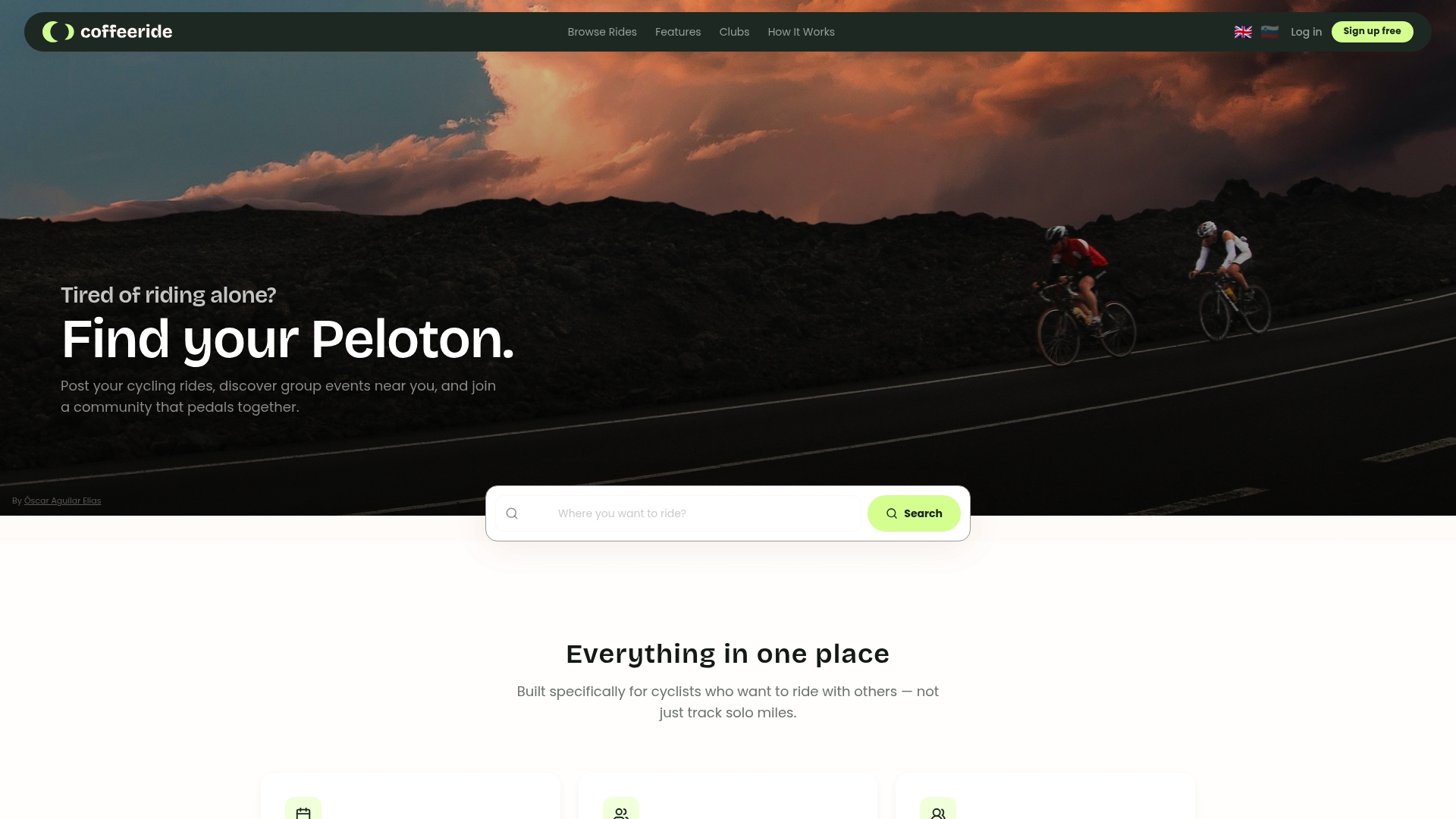
- Post group rides and coordinate them with your crew.
- Manage your cycling club.
- Keep women-only and para-cycling rides privacy-protected within the app.
For organizers who like a visible backup on the wall, a printable wall planner pairs well with a digital series for clubs that post their schedule at a shop or meeting spot.
Ready to post a group ride? Join Coffeeride Club and connect with cyclists.
FAQ
How do I set a recurring event on Outlook?
In Outlook on the web, start a New Event, select Repeat, set the interval and end date, then choose Save and Send. In classic desktop Outlook, use the Recurrence button on the event ribbon to set the same pattern.
How do I create a repeating calendar event?
Create the event, open the repeat or recurrence menu, choose a frequency like daily, weekly, or monthly, and set an end condition before saving. Most platforms, including Google Calendar and Apple Calendar, follow this same basic pattern with minor menu differences.
How do I make an event repeat every weekday in Google Calendar?
When setting the frequency, choose the custom option and select Monday through Friday as the repeat days. This creates a weekday-only series that skips weekends automatically, following the same recurrence setup Google documents for custom repeat patterns.
How do I create a recurring meeting in Google Meet?
Google Meet recurring sessions are set through Google Calendar: create the event, attach a Meet link, set the repeat pattern and end condition, then save. The Meet link stays attached to every occurrence in the series automatically.
What’s the best way to handle exceptions in a recurring series?
Edit the single date directly to create an exception without affecting the rest of the series, a pattern Microsoft documents as a distinct editing scope separate from editing the whole series. For a change that applies from a certain date forward, choose “this and all following events” instead of editing every instance individually.