Export GPX From Strava: Desktop Method for Slovenia Riders and Clubs
· 11 min read

The fastest way to export a GPX from Strava is to open the activity on strava.com and choose Export GPX from the three-dot menu. That’s the whole trick for most rides. If you need every activity at once, Strava’s bulk archive tool handles that, and if the button is missing, the Strava API or a browser extension picks up the slack. Cyclists use all three methods depending on whether they’re sharing one great climb or archiving a club’s entire route library.
TL;DR:
- Exported GPX files from Strava only include route and elevation data, making them suitable for navigation but lacking sensor data like heart rate or power.
- The export button is most reliably accessed through the desktop site; mobile browsers can request the desktop version to access the same options.
- Public activity routes can be downloaded by anyone, but private activities or those set to followers-only cannot be legally exported without athlete permission.
- Bulk exporting all past activities requires using Strava’s archive tool, which packages original files such as FITs instead of GPX.
- For group rides or clubs, sharing GPX files via platforms like Coffeeride turns routes into organized events rather than isolated files.
Table of Contents
- How to Export GPX From Strava on the Website
- Exporting GPX From the Strava App on Your Phone
- Can You Download Someone Else’s Strava Route or Activity?
- How Do I Bulk Export All My Strava Activities?
- What to Do When the Export GPX Button Is Missing
- How to Use a Strava GPX File on a GPS Device or App
- How Coffeeride Riders Use Exported GPX Files
- Find Your Next Ride After You’ve Got the Route
- Sources
- FAQ
How to Export GPX From Strava on the Website
The desktop site is the most dependable path, and it’s the one the Strava Help Center walks through directly. Here’s the flow:
- Log in at strava.com and open the activity you want from your feed or profile.
- Click the three-dot (ellipsis) menu near the top right of the activity page.
- Select Export GPX for the route and elevation data, or Export Original if you want the raw file exactly as it was uploaded, usually a FIT file.
- Check your browser’s downloads folder. The file typically saves with the activity’s title as the filename, so rename it before moving it anywhere.
The difference between the two export options matters more than people assume. GPX gives you the track: latitude, longitude, elevation points, maybe timestamps. It’s what most GPS devices and mapping apps expect. Export Original, by contrast, keeps whatever sensor data your device recorded, like heart rate, cadence, or power, which GPX simply doesn’t carry. If you’re rebuilding a route for navigation, GPX is enough. If you’re feeding a training platform that wants the full sensor picture, grab the original FIT or TCX instead.
Pro Tip: Rename the file with the route name and date before you touch it again — “Strava_export_1231.gpx” is impossible to find six weeks from now when you’re digging through your downloads folder before a group ride.
Exporting GPX From the Strava App on Your Phone
The mobile app doesn’t always show an Export GPX option, and that inconsistency trips up a lot of riders who assume it’s broken. Here’s what actually works:
- Open the activity in the app and tap the three-dot menu. If Export GPX appears, tap it and use your phone’s share sheet to save the file to Files, Google Drive, or send it directly to another app.
- If there’s no export option, open your phone’s browser instead of the app, go to strava.com, and request the desktop site (most browsers have this under the menu or address bar options). This unlocks the same export menu you’d get on a computer, since the mobile app interface often lags behind the web version.
- Once downloaded, the GPX typically lands in your phone’s Downloads or Files app, ready to airdrop, email, or upload straight into a GPS device’s companion app.
That desktop site workaround is worth remembering. It’s the single most reliable fix when the app feels like it’s hiding the button on purpose.
Can You Download Someone Else’s Strava Route or Activity?
Only if it’s public, and only the route line, not their fitness data. Strava strips heart rate, power, and pace from someone else’s exported GPX even when the activity itself is public. You’re getting the path, not their performance.
Here’s how to tell what you’re dealing with:
- A public activity or route shows a visible GPX or map download option directly on the page, and the URL loads without a login wall for anyone with the link.
- If the three-dot menu has no export option at all, the activity is almost certainly set to private or followers-only, and there’s no legitimate way around that except asking the athlete directly.
- Segments and public routes created by other users can usually be exported the same way as your own activities, since Strava treats public routes as shareable by design.
If you need an athlete’s permission for something they haven’t made public, ask them to export and send it, or use the API’s authorized OAuth flow if you’re building something at scale. Scraping around a privacy setting isn’t a gray area. It’s just against the point of the setting.
How Do I Bulk Export All My Strava Activities?
Strava’s account-level archive tool covers every ride you’ve ever logged, and it’s the right call before switching platforms or just backing things up.
- Go to your Strava account settings and find the data download or “Request Your Archive” option, as detailed in Strava’s own export and bulk export documentation.
- Submit the request. Strava compiles every activity, often as original FIT files, into a downloadable archive rather than converting everything to GPX.
- Wait for the email. Delivery isn’t instant since Strava has to package years of data, but you’ll get a download link once it’s ready.
This is the move if you’re migrating your whole history to another platform, keeping an offline backup, or just want a personal archive that doesn’t depend on Strava staying online forever.
What to Do When the Export GPX Button Is Missing
Before assuming something’s broken, run through the basics: reload the page, try a different browser, or switch to the desktop site if you’re on mobile. Confirm the activity actually has GPS data attached. Manual entries and indoor trainer rides often have no map at all, which means there’s nothing to export in the first place.
If the button still won’t show, a few vetted tools fill the gap:
- The Strava, export gpx track Chrome extension adds a direct export button to activity pages when it detects you’re authorized to view them.
- Web-based converters like MapstoGPX turn a public Strava route URL into a downloadable GPX without any install.
- Developers building their own tools can call the Strava API’s route export endpoint directly, which returns a GPX file for a route, though private routes require the correct OAuth scope. The same endpoint is documented on Postman if you want to test it before writing code.
Before installing any extension, check what permissions it’s asking for. An export tool needs access to read activity pages, not your entire browsing history. Stick to official exports or well-documented tools, and skip anything that asks you to bypass a privacy setting rather than work within it.
How to Use a Strava GPX File on a GPS Device or App
Getting the file is half the job. Loading it correctly is what makes the ride actually happen.
- Open your GPS device’s companion app, or the mapping app you’re using, and find the import or upload option, usually under routes or courses.
- Select the GPX file from wherever you saved it, whether that’s your phone’s Downloads folder or a cloud drive.
- Confirm the route loaded correctly. Check the start point matches where you’re actually parking or starting, and trim off any extra distance if the recorded activity included a warmup loop you don’t need.
- Preview the elevation profile and any waypoints before you sync it to your device, especially if you’re heading somewhere with unreliable cell signal.
Pro Tip: If your ride depends on heart rate zones or power targets rather than just the map, re-export as TCX or FIT instead of GPX. GPX only carries the track, not the sensor data your training plan might need.
How Coffeeride Riders Use Exported GPX Files
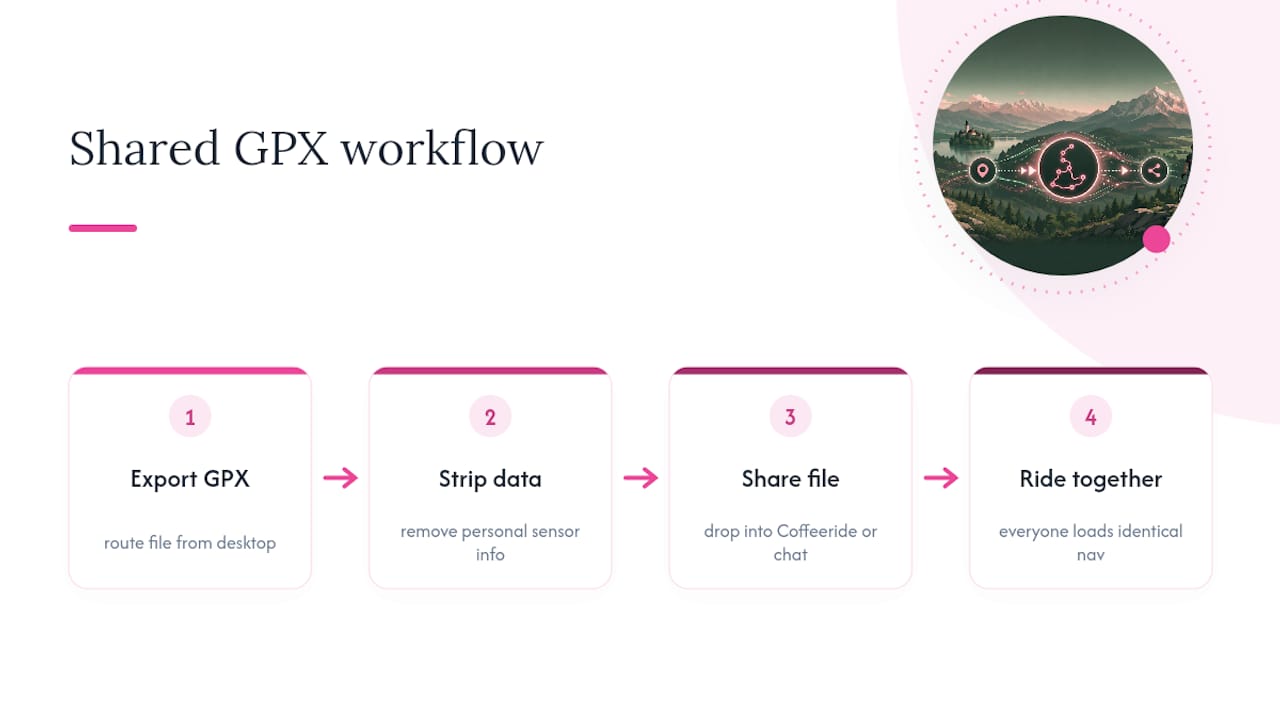
Group rides fall apart fastest when half the pack is navigating off memory and the other half is squinting at a phone mounted sideways. A shared GPX file fixes that before anyone clips in. Ride organizers export the route once, drop the file into the group chat or event post, and everyone loads identical navigation onto their own device.
Clubs use this the same way for signature routes, the Sunday loop everyone knows by name, archived as a clean GPX so new members can load it without asking around. One habit worth building: strip personal sensor data before sharing publicly, since a GPX built from Export Original can carry more than just the track. Coffeeride doesn’t convert or generate these files itself, but it’s built to be the place where a route, once exported, actually turns into a ride other people show up for.
— Coffeeride
Find Your Next Ride After You’ve Got the Route
Exporting the GPX is the easy part. Finding people who actually want to ride it is the harder one, and that’s the gap Coffeeride Club fills. Once you’ve pulled a route off Strava, post it to a Coffeeride ride and let riders at your pace find it, join it, and load the same GPX onto their own devices before rollout.
Unlike a solo export sitting in your downloads folder, a route shared through Coffeeride Club turns into an actual group ride, with a chat thread, a meeting point, and a crew who show up. Club organizers use it to archive signature routes for recurring rides, and casual riders use it to find a pace group without cold messaging strangers. Head to Coffeeride Club to create or join a club, attach your exported route, and post your next ride.
Sources
- docs/RoutesApi.md — Strava API v3 (third-party GitHub mirror)
- Export Route GPX — Strava API v3 on Postman
- How to Export GPX from Strava, Komoot & AllTrails — GPXAnalyzer
FAQ
How Do I Export a GPX File From Strava?
Open the activity on strava.com, click the three-dot menu, and select Export GPX. If you’re on mobile and don’t see that option, request the desktop site in your phone’s browser to access the same menu, as outlined in Strava’s export documentation.
Does Strava Accept GPX Files for Upload?
Yes, Strava accepts GPX uploads for manually logging a route or activity, separate from the export process covered here. The upload option sits in the same area of your account where you’d normally sync a device.
How Do I Bulk Export All My Data From Strava?
Request your full archive from your Strava account settings under the data download option, sometimes labeled “Request Your Archive.” Strava emails a download link once the export, which typically includes original activity files, is ready.
How Do I Export a Strava Route to Another GPS App?
Export the GPX from Strava using the three-dot menu, then import that file directly into your GPS app or device’s route upload tool. Most platforms accept standard GPX files without any conversion needed, since it’s a widely supported format across cycling and mapping software.
What’s the Difference Between Export GPX and Export Original?
Export GPX gives you the route line and elevation, while Export Original returns the file as it was recorded, often a FIT file with sensor data like heart rate or power. Choose GPX for navigation and Export Original when you need the full ride data intact.


